Sign in and confirm your microphone, game audio, resolution, and language.
02
Play
Instick waits in the background and detects your VALORANT session.
03
Analyze
Choose a recorded match and spend one credit to generate its analysis.
04
Improve
Review evidence, track progression, and work through the task Instick assigns.
Set up Instick once
Sign in, link the desktop app, and verify the inputs Instick needs before you queue.
Sign in opens the same Instick workspace on the desktop app.
What you can do here
01Sign in with Discord or your Instick account.
02Select the microphone that carries your voice and the output that carries game or team audio.
03Set your VALORANT resolution and interface language so visual events are read correctly.
04“Desktop linked” confirms the app and your account are connected.
Play normally. Instick captures the session.
The desktop app detects VALORANT and prepares the match for analysis without changing how you play.
Read the desktop status
The status pill follows the capture lifecycle. You do not need to start or stop a recording manually.
01
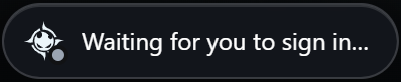
Waiting for you to sign in
Authentication is still pending. Complete sign-in in the browser window and return to Instick.
02
Waiting for you to open VALORANT
Instick is ready. Open VALORANT and enter the game normally; no manual recording is required.
03
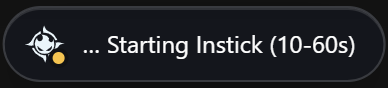
Starting Instick (10–60s)
The game was detected and the capture services are starting. Keep Instick open while this finishes.
04
Starting capture
The recording pipeline is connecting to the current game. Continue playing and leave the desktop app running.
05
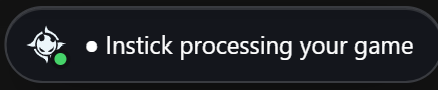
Instick processing your game
The match ended and Instick is consolidating audio and game events. Wait until the session appears before closing the app.
Sessions is the source of truth for captured, pending, and analyzed matches.The confirmation shows exactly which recording will use the credit.
Choose how matches are captured
Use automatic capture for the lowest-friction workflow, or choose matches when you want direct control over credits and eligible modes.
01
Auto analyze and Choose matches
Auto analyze records supported modes and prepares eligible matches automatically. Choose matches keeps recordings available so you decide which one uses an Individual credit; Team analyses use Team credits separately.
Capture preferences control supported modes, automatic recording, and when credits are used.
What you can do here
01“Waiting for you to open VALORANT” means the app is ready and idle.
02After the match, open Sessions to find recordings grouped by date.
03A match marked “Comms ready to analyze” has enough capture data to continue.
04Review map, agent, score, and match type before starting the analysis.
Use the dashboard as your briefing
The dashboard summarizes your latest result, communication profile, and the direction your metrics are moving.
Your latest session, five core metrics, and communication identity in one place.Team view combines the latest shared result, team identity, and communication telemetry.
Individual and Team are different workspaces
The level selector changes what Instick is summarizing; the workspace selector changes which roster and shared configuration you are using.
01
Switch team workspace
Open the team selector to move between joined rosters or join another team. Team analyses, credits, profile, and coaching settings follow the selected workspace.
The workspace menu keeps each roster and its shared data separate.
What you can do here
01Individual shows your own communication; Team shows the shared team view.
02The large session card links directly to the complete analysis.
03The five rings are an overview, not the full explanation.
04Communication identity is a pattern built from repeated sessions, so it becomes more useful with more evidence.
Review the transcript, then the evidence
Before analysis, confirm uncertain voice clips. The finished report then connects the result, metrics, round events, VOD, and voice comms.
Review the uncertain clips before analysis so the report starts from cleaner communication evidence.Start in Overview to understand the match before opening a specific moment.Review keeps gameplay, events, and voice evidence on the same clock.Play the walkthrough to see how the VOD and the per-match minimap reconstruction work together during review.
What you can do here
01Listen to low-confidence clips, keep your own words, and correct only what Instick misunderstood.
02Use “Can’t make it out” when the audio is not clear enough to confirm instead of guessing.
03Overview gives you the match result, player context, team comparison, and active missions.
04Review synchronizes VOD, round events, voice activity, and the selected metric.
05Select a round or event to inspect what happened before and after the call.
06Download analysis exports the report when you need to review or share it outside the app.
Use the right view for the question
The analysis workspace separates team comparison, performance, voice, movement, and observed relationships so each question has a focused view.
Teammates gathers player context before you compare communication profiles.Drag players or teams into the comparison to inspect their five communication dimensions.
Analysis views
These views reuse the same match evidence. Change views according to what you need to verify, not to search for a preferred conclusion.
01
Impact
Compares reviewed statements or communication signals between rounds and highlights where a change appeared. Missing rounds mean that no comparable evidence was saved.
Impact connects a communication change to the rounds where evidence exists.
02
Comms
Lists audio-linked calls around specific events, including post-death calls, their timing, round, and playable voice excerpt.
Use Comms when the question is what was said and when it was said.
03
Performance
Aligns round scores, events, VOD, and voice activity on one timeline. Select a metric and round to inspect its evidence instead of reading the final score alone.
Performance places scores and voice activity on the match clock.
04
Minimap
Opens the movement reconstruction for supported recordings. Treat detected positions as contextual evidence and verify uncertain moments against the VOD.
Minimap sits beside Comms and Performance inside Review.
05
Correlations
Ranks observed relationships between communication signals and K/D/A, match wins, or round wins. Positive or negative association is evidence of a pattern, not proof of causation.
Filter the sample and inspect evidence and confidence before interpreting a relationship.
What you can do here
01Teammates is for player statistics, peer ratings, and side-by-side communication profiles.
02Impact and Performance compare selected signals across rounds and match events.
03Comms isolates voice evidence such as post-death calls and first-call timing.
04Minimap places detected movement in map context; use it together with the VOD when verifying a moment.
Track change and work on one habit
Progression shows the pattern across matches. Tasks turn the clearest opportunity into a concrete objective.
Progression separates short-term spikes from a repeatable communication pattern.Tasks make the next improvement specific, measurable, and connected to match evidence.Completed objectives add XP toward levels and profile insignias.
What you can do here
01Filter Progression by metric, map, agent, and match window.
02Compare starting, current, and best values instead of reading an isolated peak.
03Active tasks update from new analyzed matches; completed tasks grant XP.
04Up next contains useful follow-up challenges when you are ready for another focus.
Define the standard, then plan together
Coaching Mode controls how future communication is evaluated. Tactics turns that standard into a shared plan.
Coaching Mode makes the expected behavior explicit before the next analysis.Tactics combines roster assignments, phase planning, map tools, and a concise team brief.
Keep the coaching standard close
The navbar shortcut lets you confirm or change the active coaching style without leaving the current workspace.
01
Coaching style shortcut
Choose the active coaching emphasis—such as zero toxicity, low pace, tactical focus, or higher energy. The selected style influences how future feedback is framed.
The shortcut shows which coaching style is active for the selected workspace.
What you can do here
01Choose communication pace, information density, pressure response, and feedback directness.
02Moment rules explain what Instick expects after a death, in a clutch, after a plant, or during a retake.
03Assign players and agents on the tactical board, draw routes, add calls, and save the plan.
04Use the team profile when the whole roster should be evaluated against the same standard.
Teach Instick your language
Dictionary corrections, the voice model, and persistent settings help Instick recognize your communication and capture setup more accurately.
Dictionary combines explicit entries with corrections saved from transcript review.The voice model shows training readiness, language, and the model used for new transcriptions.
Persistent capture settings
Use Settings whenever your microphone, headphone output, display mode, resolution, or VALORANT language changes.
01
Audio and game settings
Choose microphone and output devices, confirm VALORANT resolution and language, and verify the desktop connection before capturing another match.
Persistent settings determine which audio and visual configuration Instick expects.
What you can do here
01Add team terms, player names, slang, and pronunciation context to Dictionary.
02Review corrected clips before requesting a new personal voice model.
03Changes to the voice model apply to new transcriptions, not analyses already generated.
04Confirm persistent audio and game settings after changing a microphone, display, resolution, or language.
Know what the message means and what to do next
Most interruptions have a clear recovery path. Identify the message first, preserve the affected session, and use the action attached to that exact match.
Warnings you may see
These messages require different actions: one belongs to Windows installation security; the other belongs to a specific match analysis.
01
Windows protected your PC
Microsoft SmartScreen shows this because the current installer does not yet have a recognized publisher certificate. First confirm that the installer came from instick.gg/download. Then choose More info, verify the Instick installer name, and select Run anyway. If the origin or filename looks wrong, choose Don’t run and download a fresh copy from the official page.
Continue only after confirming that the installer was downloaded from the official Instick page.
02
Analysis didn’t finish
A processing step failed before the report was published. Click Report this match once; this attaches the correct recording and identifiers for investigation. If that action is unavailable, open the account menu, choose Report a problem, select the affected analysis, and indicate whether a credit was consumed. Do not delete the session or start repeated analyses while it is being reviewed.
Report the problem from the affected session so support receives the correct match context.
Before your next match
01Download the installer only from instick.gg/download. If the file came from another source, cancel the installation and download it again from the official page.
02Confirm “Desktop linked”, the correct microphone and headphone output, VALORANT language and resolution, and Windowed Fullscreen display mode.
03Open Instick before queueing and keep it running until post-match processing finishes and the session appears.
04“Locked” or “Comms ready to analyze” means the recording is safe but the analysis has not run. Select the match and choose Analyze, or enable Auto analyze.
05“No audio-linked finding” is not a failed analysis. Try another round, event, player, or metric where voice evidence exists.
06If an analysis did not finish, report it once and keep the session available so support can trace its session and match identifiers.
What the five scores tell you
Scores summarize communication behavior in the context of the match. Open the analysis to inspect the evidence behind them.
01
Toxicity control
How consistently communication stays constructive and free of harmful language.
02
Coordination
Whether calls help teammates act together with clear timing and intent.
03
Leadership
How often the player provides useful direction when the round needs a decision.
04
Activity
How present the player is in comms without confusing volume with usefulness.
05
Quality
How clear, relevant, timely, and actionable the information is.
Important
A score is a starting point, not a verdict.
Use the timeline, voice evidence, and match context to understand why a score moved. Compare trends across several matches instead of judging a player from one session.
Ready for your first capture?
Install the desktop app, check your audio sources once, and let Instick handle the rest while you play.